Blog
How to Read Long Emails in a Clean Reader View (Reader Mode for Gmail)
Someone sends you a long email - a proper one, the kind worth reading slowly. A note from a friend you haven't heard from in months. A detailed brief. A thoughtful reply you actually want to absorb. So you open it, and you read it in the same cramped strip of screen you use to triage receipts and newsletters: small text, edge-to-edge lines, a sidebar and three toolbars competing for your attention. The longer and more personal the email, the worse the fit.
Short answer: A reader mode strips away the interface around a piece of text and reflows it into a calm, single-column reading view - the way Safari Reader or Firefox Reader View do for web pages. Gmail doesn't have one built in, but you can add a reader view that works on the email itself, in place, without sending it anywhere.
What is a reader mode (or reader view)?
A reader mode is a stripped-down reading view. It takes content that's surrounded by interface - menus, sidebars, ads, buttons - and re-renders just the text in a clean, centered column with comfortable typography. You've almost certainly used one: Safari Reader, Firefox Reader View, Microsoft's Immersive Reader, and read-later apps like Pocket all do versions of the same thing. The point is to remove everything that isn't the words, so reading feels like reading rather than navigating.
Does Gmail have a reading mode?
No. Gmail's interface is built for triage - scanning a list of mostly short messages and deciding what to do with each one. That's a different job from reading one long message carefully, and the design reflects it: a full-width content area, a compact sans-serif font, and persistent chrome (search bar, sidebar, label row, toolbars) framing every message. It's efficient for sorting. It's not built for sitting with a long email.
Why are long emails hard to read in Gmail?
Three things work against you. Line length: on a wide screen, Gmail lets text run the full width of the content area - far longer than the ~50-75 characters per line that's comfortable to read, so your eye loses its place jumping back to the next line. Typography: a small sans-serif optimized for scanning subject lines isn't the same as type set for sustained reading. Surrounding clutter: the sidebar, toolbars, and label chips sit in your peripheral vision the whole time, quietly pulling at your attention. None of this matters for a two-line confirmation. All of it matters for a thousand-word letter.
Can you get a reader view inside Gmail?
Yes. Instead of copying the email into another app, you can open the email you're already reading in a reading view that takes over the screen - the same email, re-rendered for reading. Here's the difference, on the same message:
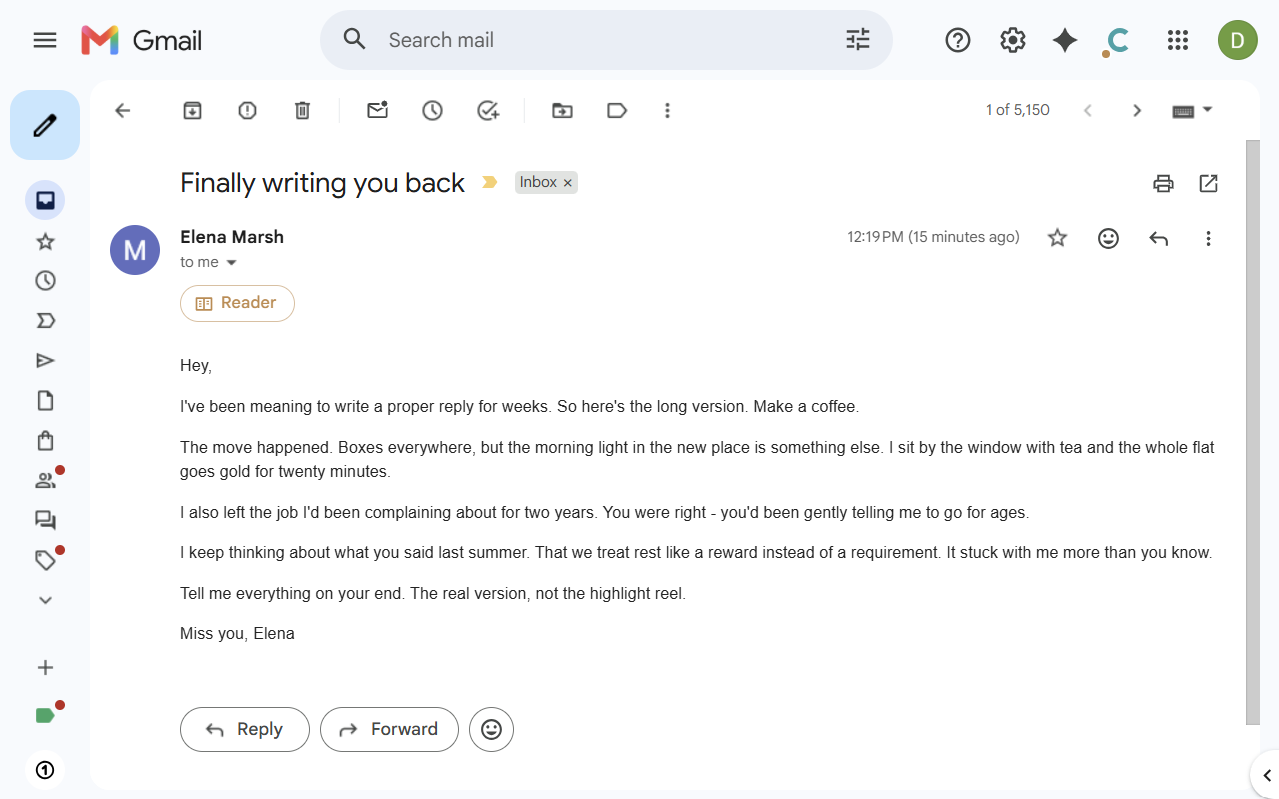
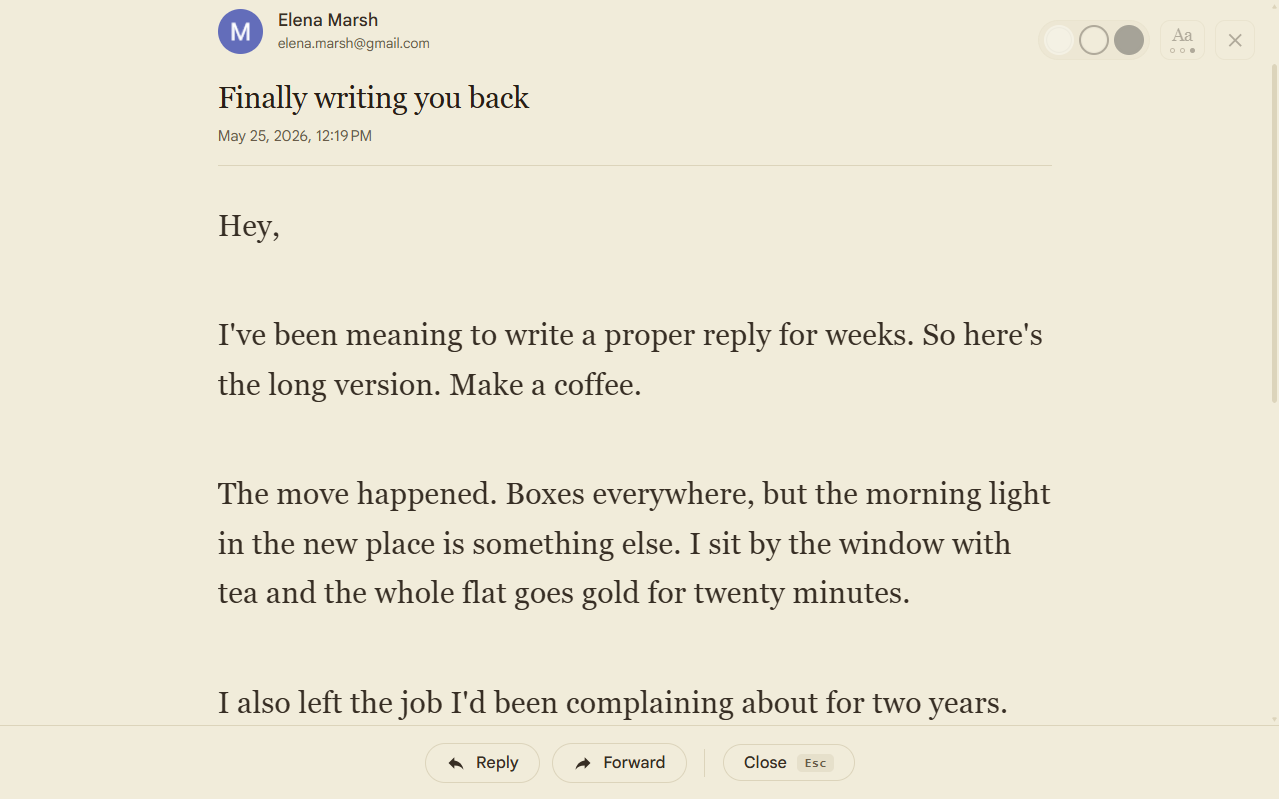
The chrome is gone. The text is set in a serif typeface, in a column sized for reading, on a warm background. Nothing about the email changed - only how it's drawn while you read it.
How Reader Mode works
Chameleon for Gmail adds Reader Mode to Gmail. Open any email and a Reader button appears under the sender; click it (or press Shift+R) and the message opens full-screen in a reading view. What you get:
- A reading column, not a full-width strip. Text is constrained to a comfortable line length and set in a serif typeface sized for sustained reading.
- Three themes. Sepia (the default), light, and dark - pick whichever is easiest on your eyes.
- Adjustable size. An "Aa" control steps the text through three sizes; the set is deliberately small so it keeps the e-reader feel rather than turning into a slider.
- Thread-aware. In a multi-message thread you can move message by message without leaving the reading view, and long quoted replies are collapsed by default so you're not re-reading the same chain.
- Reply, Forward, or Close. Act on the email from inside Reader, or press Esc (or the browser back button) to drop straight back to your inbox.
It runs entirely in your browser. It uses Manifest V3 (Chrome's current extension architecture) and only re-renders how the open email is displayed - no data is collected, nothing is sent anywhere, and no account is required.
Is this the same as Safari Reader or Pocket?
Same idea, different place. Safari Reader and Firefox Reader View work on web pages; read-later apps like Pocket work by sending the content somewhere else to read it later. Reader Mode works on the email itself, in Gmail, the moment you open it - no copy-paste, no saving an article to a separate app, and you can still reply or forward without leaving. It's a reading view for the inbox you already read in.
Reader Mode is one of four viewing modes in Chameleon for Gmail. The others are Privacy Screen (scrambles your on-screen text so people nearby can't read it), Font Size (enlarges email text without breaking Gmail's layout), and Focus (dims low-signal inbox rows so important mail stands out).
Getting started
- Install Chameleon for Gmail from the Chrome Web Store (also available on Microsoft Edge).
- Open Gmail and open any email.
- Click the Reader button under the sender's name, or press Shift+R.
- The email opens in a clean, full-screen reading view. Switch themes or text size from the controls at the top.
- Press Esc or the browser back button to return to your inbox anytime.
Chameleon for Gmail is a free Chrome and Edge extension. Install it here or learn more at chameleonlabs.adaptivemessages.com.